Home
Download
Purchase
Forum
Arcticles
Map
F.A.Q.
Support
About Us
Google Search
News
VideoCharge Studio
Release 2.12
Products
VideoCharge Studio
Details
Screenshots
Features
Samples
F.A.Q.
Buy Now
System Requirements
Download
Activation
Watermark Master
Details
Screenshots
Documentation
Samples
F.A.Q.
VideoCharge
Details
Screenshots
Samples
F.A.Q.
SDK
Details
Download
Documentation
Subscribe
Unsubscribe
Extras
Login
Feedback
Links
VideoCharge Studio
Screenshots
Prev
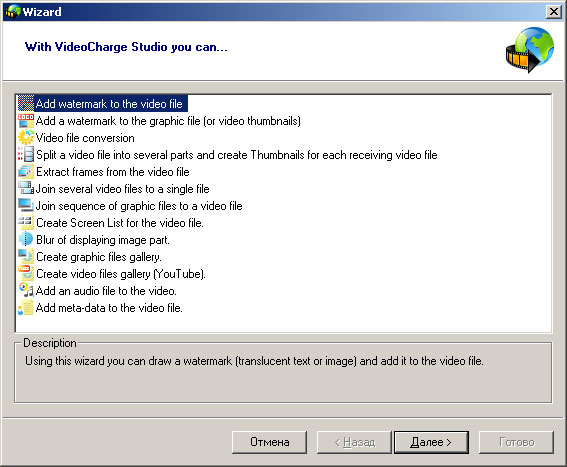
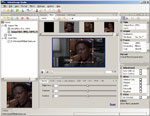
Wizard.
Next
In "Wizard" you can perform one of the most often operations with VideoCharge Studio simply following clear "Wizard" instructions.
Prev
All screenshots
Next
My Best Casinos
|
Best online casinos in Brazil
|
The Hot Casinos
|
Crypto Coin Casinos
|
Slotzix - Best online slots with free play
|
Indian Official Site of Pin Up Casino
Video Editing Software!
Software for video galleries creating
What is watermark?
VideoCharge Studio:
help for beginners!
VideoCharge Studio:
features!
How to add watermark to video or graphic file?
How to split a video file?
MKV to FLV without re-Encoding!
How to join video files?
Home
Download
Purchase
Forum
Article
Map
F.A.Q.
Support
About Us
© 2010-2025 VideoCharge Software. All Rights Reserved.
Menu